...
The first step is to decide what your pages are going to be and how they are going to be grouped together. For the purpose of this exercise, I am going to make a website about the "How GlowHost is really great!" My goal is to share information about GlowHost.
Step 2: Create your pages
Create new pages by clicking on Page and then clicking on the green "+". Enter the name of your page and page heading.
I am now going to create all the pages for my site. This website is going to have a total of 20 pages. Look When you create pages, look at how the navigation bar might look with all 20 the additional pages.
I think you will agree with me that this is As you add more pages, it starts to get pretty cluttered. It is also very confusing to your visitors, as they have no way of know what page to go to first!
...
To organize your pages in the navigation, do the following:
...
- Go to Page > Page Properties > Navigation.
...
- The Page Manager dialog box will display.
...
- Click on the green indent arrow next to the page you'd like to make as a subpage.
...
- Drag and drop your pages vertically under the top-level page to get them in the right order.
...
- Click "OK".
When you mouseover one of the categories, you will see the Flyover Menu display with the list of subpages I that you have created. This effectively allows you to browse my the site without the cluttered navigation.
...
Sometimes, you might want to have a page completely hidden from the navigation but still have a way for people to arrive at that page. This can be achieved by "hiding" your page and creating a link to that hidden page. Here's how:
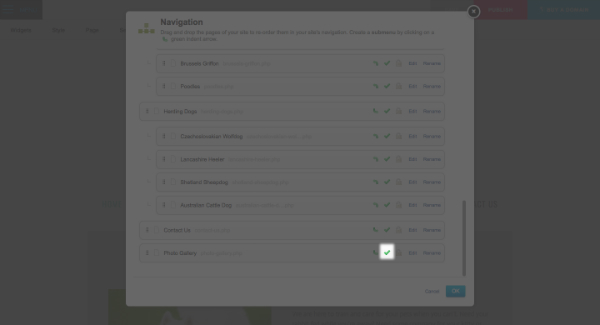
- On the top menu bar, click on Page > Page Properties > Navigation.
- The Page Manager dialog box will display.
- Click on the green checkmark next to the page you'd like to remove from your navigation (it will become become a red "X"). This hides the page from your navigation menu.
- Click "OK".
Step 5: Create your link
...
- Go to Widgets > Popular.
- Drag and drop a Text Widget onto your page.
- Type and highlight your link text.
- Click "Link" button (looks like a chainlink) on the Text Editing Toolbar.
- In the Link Editor dialog box, browse for the page you want to link to and click "OK".
...
You will now have a well-organized site with a clear hierarchy that will help your visitors find the information they are looking for.
Related articles
| Content by Label | ||||||||||||||
|---|---|---|---|---|---|---|---|---|---|---|---|---|---|---|
|